Note: This command is provided as an optional feature. For this command to function, several requirements must be met.
If installed, use the Export: Flow-Cal Ticket Data TFX command to export raw ticket data records for a defined time range from FMS to a specified directory location as a .tfx file. Data that is not from a raw data source, e.g. has been imported into FMS via .csv files (categorized as a "User file" source), is not included in the export.
When the Export: Flow-Cal Ticket Data TFX command is executed, ticket data is resolved for each eligible device via the customizable command definition file (CDF), and the FMS Service exports the raw data records, created within the specified command time window, to the specified directory location as a .tfx file.
See FMS Commands and Flow-Cal Ticket Data TFX for more information about using this command via CygNet Explorer (MSS).
See Scheduling FMS Command Tasks in the MSS for more information about scheduling commands.
See FMS ActiveX Controls and CxHmiFms for more information about using commands via FMS ActiveX controls on CygNet Studio or CygNet Vision screens.
See CxFms for more information about scripting commands.
To enable the command to export raw data to Flow-Cal .tfx files, and see the command listed in command management options, the following elements must be present.
Note: Refer to Flow-Cal documentation and/or contact your Flow-Cal representative for the most current information about differences between TFX versions, and specific Flow-Cal configuration details.
If desired (optional), first edit or customize item mappings in the command definition file.
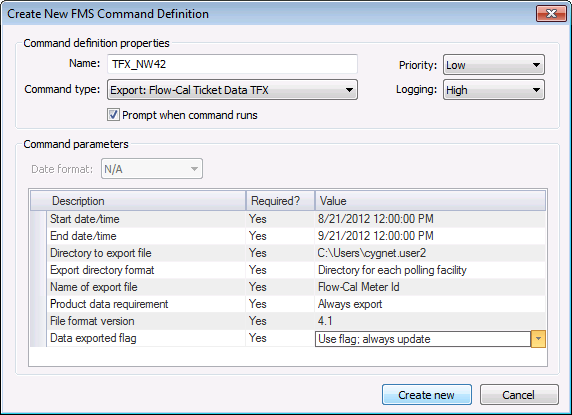
Use the following procedure to configure Flow-Cal Ticket Data TFX exports.
To Configure an Export: Flow-Cal Ticket Data TFX Command
The following command definition properties apply to Export: Flow-Cal Ticket Data TFX commands.
| Property | Description |
|---|---|
|
Name |
Type in a Name for the new command. |
|
Command type |
Select the desired Command type from the drop-down menu. See FMS Commands for more information about available command types. |
|
Priority |
Select a processing queue Priority for the command from the drop-down menu. Options from least to greatest priority are as follows.
Default value is Low level processing queue priority. |
|
Logging |
Select a Logging level for the command results from the drop-down menu. Options are as follows.
Default value is Low level logging when scheduling a command in the MSS. Default value is High level logging when creating or running an ad-hoc command in FMS Explorer. |
|
Prompt when command runs |
Click to select/clear the check box to Prompt when command runs. Selecting this option means you will receive a prompt asking if you want to modify the parameters before the command is executed. |

The following command parameters apply to Export: Flow-Cal Ticket Data TFX commands when creating or editing commands via FMS Explorer.
| Description | Value |
|---|---|
|
Start date/time |
Select the beginning date and time of the range for which to export device records. Click ... to access the Select Date and Time dialog box. See Selecting Date and Time for more information. See Note below this table. This parameter is required. |
|
End date/time |
Select the ending date and time of the range for which to export device records. Click ... to access the Select Date and Time dialog box. See Selecting Date and Time for more information. See Note below this table. This parameter is required. |
|
Directory to export file |
Enter the directory location to which the .tfx file will be exported. Type the directory location for the file into the text box or click ... to access the Browse For Folder dialog box, browse to the directory location, and then click OK. Note: The directory specified is relative to the client computer. This parameter is required. |
|
Export directory format |
Select a file directory format for the .tfx export file, from the options in the drop-down menu. Options are as follows.
This parameter is required. |
|
Name of export file |
Select a file name format for the .tfx export file, from the options in the drop-down menu. Options are as follows.
This parameter is required. |
|
File format version |
Select the version of the .tfx file created for the export, from the options in the drop-down menu. Options are as follows.
Note: Alternatively, file format version can be configured in the .cdf (command definition file) if desired. This parameter is required. |
|
Product data requirement |
Select whether to export product data, from the options in the drop-down menu. Options are as follows.
This parameter is required. |
|
Data exported flag |
Select whether to flag device records as "exported" in the database, from the options in the drop-down menu. Options are as follows.
This parameter is required. |
Note: When using relative (rather than absolute) date/time, if both the start and end date/time have hour, minute, and second values of 00, or if both are set to midnight, an additional day will be added to the date at the end of the range. This occurs because the service assumes the start of the day for the starting date/time and the end of the day for the ending date/time in these circumstances. Therefore requesting a time range from T to T will yield one day of data, and from T-1 to T will yield two days of data. If only one day of data is desired when using relative date/time, the start and end date/times must therefore be the same. If any of the start or end date/time hour, minute, or second values are specified as a value other than zero (or midnight) however, the range will be used as specified.
See Managing Node Commands for information about editing or deleting this command.
See Running Node Commands for information about running this command.
If you want to change specific data item mappings or values, use the following procedure to edit or customize the Export: Flow-Cal Ticket Data command definition file (CDF), before executing the Flow-Cal ticket data export command.
Note: When you override a CDF mapping, you generally want to ensure that each newly mapped item is mapped to a field that uses the same unit type as the new item. If you decide to map an item requiring units to a unitless field in the file however, the mapping will still be valid but the value reported from the device will appear exactly as read, and not associated with a unit set. Values are not converted in the file when they are sent to a unitless field.
Note: Problems that arise while processing a command definition file are logged to the Services > FMS log file.
|
|
|

